Setup your R environment

Setup

Download workshop code and data from the repository

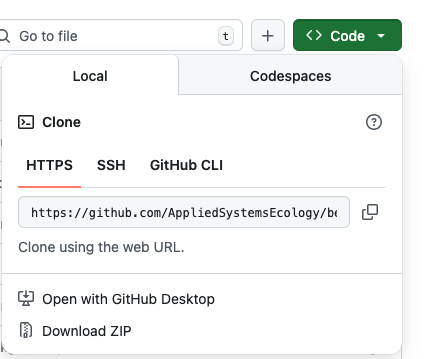
To follow along with the workshop on your own computer, you will need to download the contents from the workshop repository, click on the green <>Code button and select Download ZIP. Unzip the downloaded zip file and save the folder to your computer.

Code menu in the upper right corner of the workshop repository

Install packages

The following function installs and loads all the packages required for this workshop. While this function only installs packages that aren’t currently installed, it may take several minutes.

load_pkgs <- function(pkgs) {
  inst_pkgs <- pkgs[!pkgs %in% installed.packages()]
  for(p in inst_pkgs) install.packages(p, ask = FALSE)
  sapply(pkgs,require,character=TRUE)
}

pkgs <- c("terra", "rlandfire", "rgbif",
          "dplyr", "predicts", "tidymodels",
          "sf", "ggplot2", "themis", "pROC",
          "ecospat", "ranger", "usethis", 
          "rmarkdown")

load_pkgs(pkgs)
     terra  rlandfire      rgbif      dplyr   predicts tidymodels         sf 
      TRUE       TRUE       TRUE       TRUE       TRUE       TRUE       TRUE 
   ggplot2     themis       pROC    ecospat     ranger    usethis  rmarkdown 
      TRUE       TRUE       TRUE       TRUE       TRUE       TRUE       TRUE 

If you have not previously installed spatial packages in R (e.g., terra) you may encounter an error. The most common issue is a result of not having gdal installed. If you encounter an error, any of the workshop organizers can help you troubleshoot.

Tips for installing gdal

Mac and Linux computers may need extra steps to install gdal, a necessary geoprocessing library.

Mac

If you are using a Mac and don’t have gdal installed, follow these directions.

You may need to install homebrew first.

Linux

To install gdal on Linux, follow these directions.